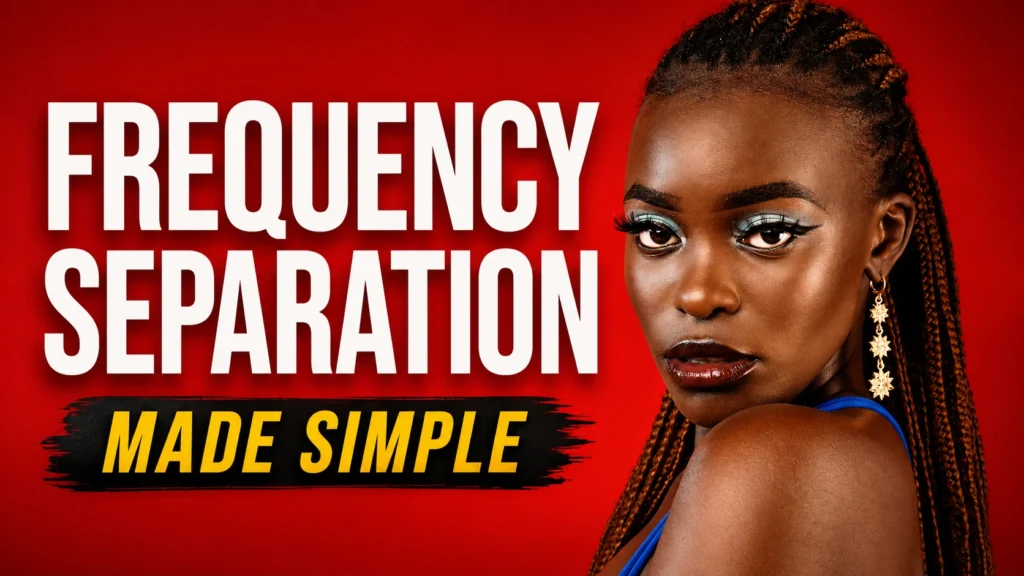
# Frequency Separation Made Simple: Professional Skin Retouching in Photoshop In this video, I will teach you, directly and without wasting time, how to use **frequency separation in Photoshop** for professional skin retouching. This technique is widely used in **beauty retouching, portrait editing, adult photo retouching, fashion photography, and professional photography workflows** because it allows you to correct skin imperfections while preserving natural skin texture. For more advanced Photoshop tutorials, beauty editing, adult retouching techniques, and professional photography workflows, subscribe to **HUEB ARTS PRIVATE MEMBERSHIP**. ## What Is Frequency Separation? Frequency separation is a Photoshop retouching technique that separates an image into two layers: **Color Layer** This layer controls tones, colors, transitions, shadows, and highlights. **Texture Layer** This layer preserves skin pores, fine details, texture, hair, and surface imperfections. By separating color and texture, you can retouch the skin without making it look artificial, plastic, or overedited. ## Step 1: Duplicate the Layer First, duplicate the original image layer twice. Use the shortcut: **Ctrl + J** Rename the first duplicated layer: **COLOR** Rename the second duplicated layer: **TEXTURE** The COLOR layer will be used to smooth tonal transitions, while the TEXTURE layer will preserve the natural details of the skin. ## Step 2: Work on the Color Layer Now, turn off the visibility of the TEXTURE layer and select the COLOR layer. Go to: **Filter > Noise > Dust & Scratches** Adjust the value until the model’s skin tones become smoother, but the main facial structure is still recognizable. In this example, a value around **27** works well. The goal is not to blur the image completely. The goal is to soften the color transitions while keeping the overall shape of the face visible. ## Step 3: Apply Image to the Texture Layer Now, turn the TEXTURE layer back on and select it. Go to: **Image > Apply Image** Use the COLOR layer as the source. Set the blending mode to: **Subtract** Then use: **Scale: 2** **Offset: 128** After applying these settings, change the blending mode of the TEXTURE layer to: **Linear Light** Now the image should look normal again, but the color and texture are separated into two different layers. ## Step 4: Retouch the Texture Select the TEXTURE layer. Choose the Clone Stamp Tool. Set the sample mode to: **Current Layer** Now, hold **Alt** and click on an area of clean skin texture that you want to use as a source. Then carefully paint over the areas you want to correct. This allows you to remove small imperfections while keeping the skin texture natural and realistic. ## The Final Result After just a few minutes of work, we now have a cleaner portrait with a natural texture, not an artificial one. This is the real power of frequency separation in Photoshop. It gives you control over skin retouching while preserving the details that make the image feel real. This technique is ideal for: Beauty retouching Portrait retouching Fashion photography editing Adult photo retouching Professional skin retouching Photoshop retouching workflows High-end photography editing ## Watch the Full Tutorial In the full video, you can follow the entire process step by step and see how frequency separation can improve the final quality of a portrait without destroying the natural texture of the skin. If you enjoyed this tutorial, leave a like and subscribe to the channel. See you next time. ## Suggested Tags frequency separation photoshop, photoshop skin retouching, beauty retouching tutorial, professional skin retouching, portrait retouching photoshop, high end retouching, photoshop tutorial, frequency separation tutorial, adult photo retouching, beauty editing, photography editing workflow, natural skin texture photoshop, retouching tutorial for photographers, photoshop beauty editing, skin texture retouching

Frequency Separation: Master Professional Skin Retouching With This Photoshop Technique

Frequency Separation Made Simple: Professional Skin Retouching in Photoshop In this video, I will teach you, directly and without wasting time, how to use frequency separation in Photoshop for professional skin retouching. This technique is widely used in beauty retouching, portrait editing, adult photo retouching, fashion photography, and professional photography workflows because it allows you […]

Frequency Separation: Master Professional Skin Retouching With This Photoshop Technique Read More »